
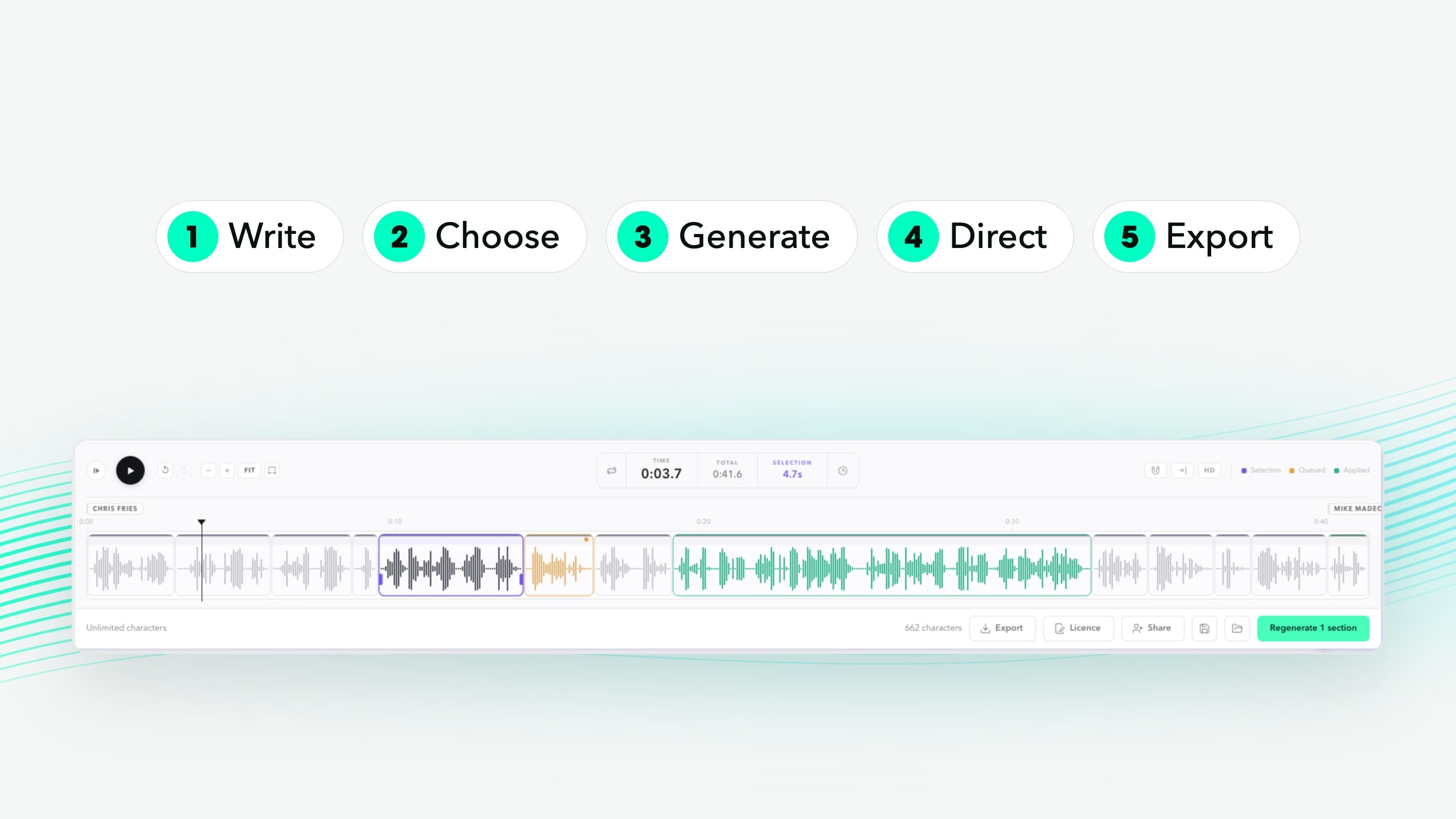
Voiceover Studio works differently. It's an editing suite, not a generator. You write your script, generate speech, then direct the performance the way you would in a real session: adjusting delivery, fixing individual words, trying different takes and shaping the pacing until it's exactly what the brief needs. You're not hoping for a good take. You're building one.
Here's how to get started.

1. Write or paste your script
Open Voiceover Studio, start a new project and paste your text into the editor. Voiceover Studio splits it into sections automatically, one per sentence. Each section is independent, with its own audio clip, voice settings and place on the timeline. Working with dialogue or more than one voice? Click + Add speaker to add a speaker block, each with its own voice, style and pace. For longer projects, group tabs keep chapters or scenes apart.
2. Choose a voice and set the delivery
In the Settings panel on the right, pick a voice, then choose a delivery style that suits the read, such as Natural, Friendly, Professional or Dramatic. Set the speed if you want a faster or slower pace.
These settings apply to the whole script by default, but you can change any of them for a single line. Select a sentence, or just a few words, and pick a different voice, style or speed in the settings panel. A legal disclaimer can be read slowly and professionally while the intro stays upbeat, in the same script and from the same speaker.
3. Generate
Click Generate in the bottom bar, or just press Play. Audio appears on the timeline section by section. Each clip shows a waveform linked word by word to your text: select words in the script and the same words light up on the waveform, and during playback every word lights up as it's spoken.

4. Direct the performance
This is where Voiceover Studio earns its name. When a line needs a different read, you don't start again. You direct it.
Re-read a word or phrase. Select just the words you want to change, right-click and choose New take. The new audio is spliced into the existing clip, and the rest of the performance (timing, tone, everything around it) stays exactly as it was.
Try a different read. Right-click a sentence and choose New take, or select several sentences and get new takes of all of them at once. Each take is a fresh read of the same text with the same settings, with subtle differences in delivery and rhythm. Takes are never overwritten: right-click, choose Takes and switch between them to compare by ear and keep the one that works.
Adjust the pacing. Change the speed of any section. Time-stretch adjusts the existing audio: it's free, instant and keeps the performance. True Speed gives you a fresh take at the new pace. Need a section to land on an exact length, like a 10-second slot? Click the Clock icon and enter the exact settings in the Duration box. Slow a key line down or tighten a transition: every sentence can have its own pace.
Add pauses and reactions. Insert a pause from 100 milliseconds to two seconds exactly where you want it, or drop in short vocal reactions such as a laugh, a sigh, an "mmm" or a "wow". They're generated in the speaker's own voice, so they sit naturally in the read.
5. Export
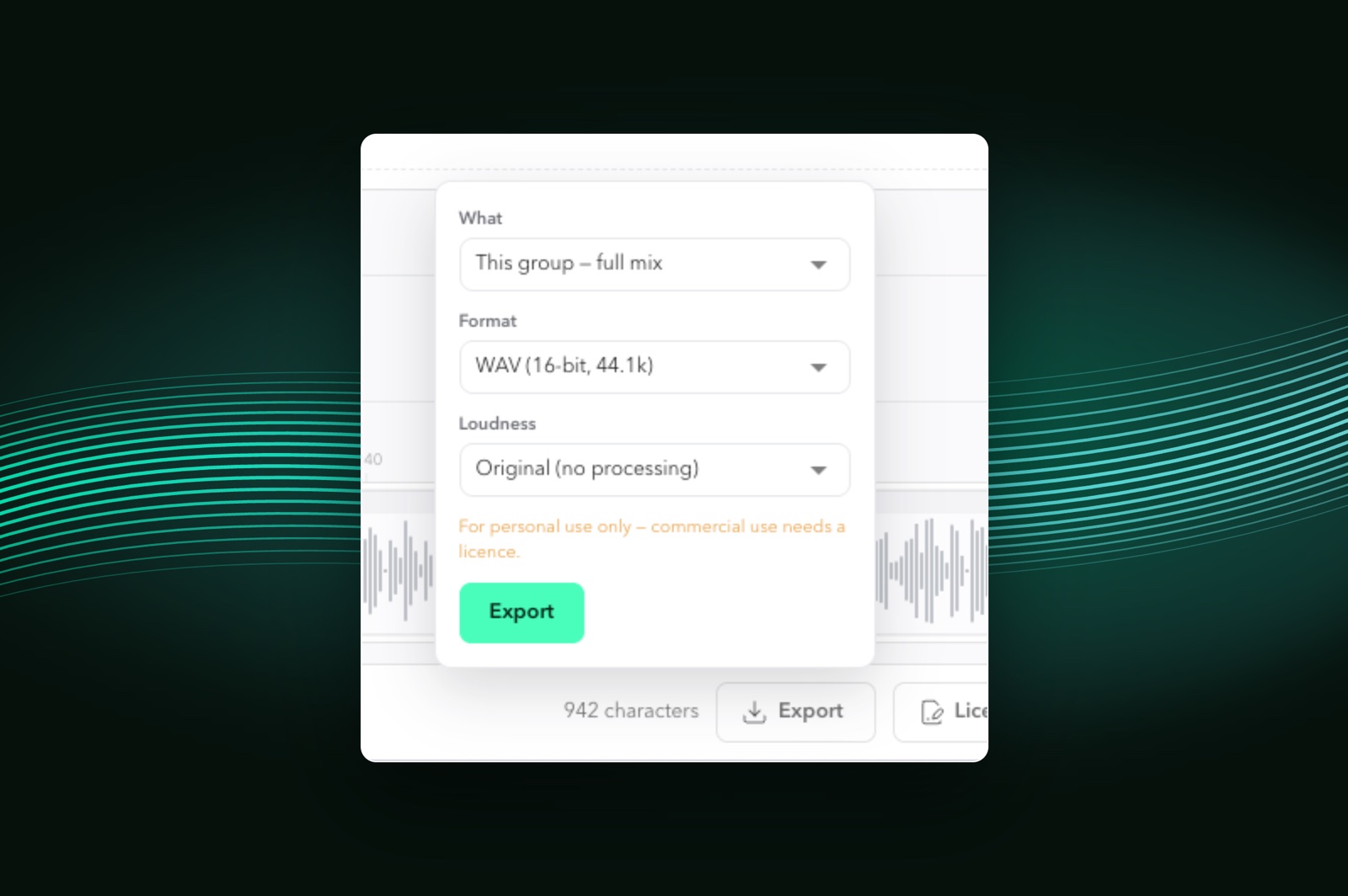
When it sounds right, click Export. Choose the full mix, every section as separate files, or the whole project. Pick WAV or MP3, and set the loudness for podcast (−16 LUFS), social (−14 LUFS), EU broadcast (−23 LUFS) or US broadcast (−24 LKFS).
What costs credits, and what doesn't
Most of the directing is free. Time-stretch, Duration, switching takes, adjusting volume, removing breaths, trimming and moving clips, and splitting sections use no credits. You're editing audio that already exists.
Credits are only used when the voice generates something new: a first read, a new take, a True Speed read or a re-read of selected words. When you re-read a few words, you only pay for those words, not the whole section.
Sign in to your Voice-Swap account and you get 1,000 free characters to try it. Open Voiceover Studio and start directing your first read.